What Is Git? A Developer's Essential 2026 Guide
Most beginners hear that Git is a tool for saving your code. But Git is so much more and is a cornerstone of modern development.
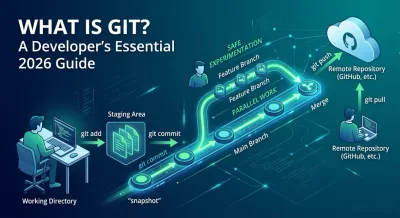
You’ve probably already done a primitive version of version control without realizing it.
A folder starts with app.py. Then it becomes app_v2.py. Then app_v2_fixed.py. Then app_v2_fixed_really_final.py. If another person joins the project, someone zips a folder, sends it over chat, and nobody is fully sure which copy is correct anymore.
That system works for about a day.
After that, you need a way to answer basic questions with confidence. What changed? Who changed it? Can we undo it? Can two people work on different features at the same time? Can we test a risky idea without breaking the main project? Can we publish code publicly and still keep a clean history?
That’s what Git solves. And the fastest way to get good at it isn’t memorizing commands. It’s learning the mental model Git uses so that its commands start to make sense.
Going Beyond a Simple Save Button #
Most beginners hear that Git is a tool for “saving your code.” That description is too small to be useful.
Git is a version control system, or VCS. It doesn’t just save the latest copy of a file. It tracks the evolving history of a project, including which changes belong together, when they were made, and how different lines of work relate to each other. That’s a very different job from the save button in your editor.
Why manual versioning breaks down #
Manual file naming fails for two reasons.
First, it treats each file like an isolated document. Software isn’t like that. A real project has many files that need to stay in sync. If you rename or copy only some of them, the project can stop working.
Second, manual versioning has no trustworthy history. You can’t easily see why a change happened, compare one state to another, or recover from a bad edit without guesswork.
Git gives you a structured history instead of a pile of file copies.
Practical rule: Git is less like “Save As” and more like a flight recorder for your project.
That shift matters because modern development depends on it. Teams use Git to coordinate changes, review work, connect code to deployment pipelines, and keep portfolio projects organized in a way employers recognize.
Why Git matters professionally #
If you want to work as a developer, Git isn’t optional. It’s the default language of collaboration in software teams.
Git has over 90 to 95% market share among version control systems, and more than 95% of professional developers reported using Git in the 2023 Stack Overflow Developer Survey, according to GeeksforGeeks’ Git history overview. That doesn’t just make Git popular. It makes Git the baseline assumption in most engineering workflows.
A few things follow from that:
- Hiring managers expect it: Your code usually lives in a Git repository, not as loose files on your laptop.
- Teams depend on it: Code review, release branches, bug fixes, and collaboration all build on Git workflows.
- Tooling assumes it: Platforms and services around testing, deployment, and project hosting commonly integrate with Git repositories.
The real benefit #
Git gives you confidence.
You can try a change without fear. You can inspect what happened. You can work with other people without stepping on each other’s changes. You can rewind, compare, branch, merge, and publish your work with a clear record.
That’s the answer to what is git. It’s a system for managing the life of a codebase, not just storing files.
The Core Mental Model How Git Thinks #
The biggest mistake beginners make is treating Git like a long list of commands. That approach produces fragile knowledge. You remember git add, git commit, and git push, but when something unexpected happens, you’re lost.
Git gets easier when you stop thinking in commands and start thinking in states.

Your project exists in three places #
A useful mental model is this:
| Place | What it means | Analogy |
|---|---|---|
| Working directory | Your current files on disk | Your desk while you’re actively editing |
| Staging area | The set of changes you intend to include next | A draft you’ve selected for review |
| Repository | The permanent project history Git stores | A history book of approved snapshots |
Most confusion in Git comes from not knowing which of these three places you’re affecting.
If you edit a file, you changed the working directory. If you choose specific changes for the next snapshot, you changed the staging area. If you record those staged changes permanently, you create a commit in the repository.
That’s why add and commit are separate. Git wants you to decide what belongs together before writing history.
Git thinks in snapshots #
Git stores project history as a series of complete filesystem snapshots rather than incremental file differences, and that design makes local operations like browsing history up to 100 times faster than in centralized systems, as described in Wikipedia’s Git article.
That sentence sounds technical, but the idea is simple.
Git is not asking, “What tiny edit happened to this file?” first. It’s asking, “What did the project look like at this moment?”
So a commit is best understood as a snapshot with context:
- the state of the project,
- a message explaining why,
- a link to earlier history.
This is why Git can feel more like a timeline than a file backup tool.
Think of each commit as a page in a project journal. The page records the state of the whole story, not just one sentence that changed.
Why the staging area exists #
The staging area is one of Git’s most misunderstood ideas.
Beginners often ask, “Why can’t Git just commit everything automatically?” It could, but that would make your history worse. Real work is messy. You might fix a bug, rename a variable, delete an old comment, and start an unfinished experiment in the same editing session. Those changes don’t always belong in one commit.
The staging area lets you say, “These changes form one meaningful unit. Save this part first.”
That’s not bureaucracy. It’s architecture. Clean commits make debugging, code review, and rollback much easier later.
If you want to build the broader habit of reasoning from systems instead of memorizing procedures, this article on thinking like an engineer is a useful companion.
Distributed by design #
Git is also a distributed version control system. That means each developer has a full local copy of the repository’s history, not just a thin connection to a central server.
This design choice explains a lot:
- many operations are fast because they happen locally,
- you can inspect history offline,
- branching and experimentation feel cheap,
- collaboration happens by synchronizing histories, not by constantly editing one central copy.
That last point is important. Git assumes people will work independently for stretches of time, then reconcile their work deliberately.
Once you understand that, Git stops looking arbitrary. It starts looking like a system designed for parallel thinking.
Architecting Collaboration with Branches #
Branches are where Git stops being just a personal history tool and becomes a collaboration system.
A branch is easiest to understand as an alternate timeline of the project. You create one when you want to make changes without disturbing the main line of development.

If that sounds dramatic, good. It should. Branches let you say, “I can experiment with this idea safely, and I want the stable project to keep moving without me.”
Why branches are such a big deal #
Older version control systems often treated branches like heavy copies. Git treats branches as lightweight, movable pointers to a commit, which makes creating and merging them fast and cheap, according to Atlassian’s explanation of Git.
That design changes team behavior.
When branching is cheap, developers stop hoarding risky work on the main branch. They create a branch for a feature, a bug fix, or a refactor. They isolate the work, test it, review it, and merge it back when it’s ready.
This pattern supports a healthier architecture for collaboration:
- stable work stays stable,
- experimental work stays isolated,
- integration happens intentionally.
A branch is not a copy of fear #
Many juniors treat main as sacred and every branch as dangerous. That’s backward.
The branch is the safe place. It’s where you should make bold changes. The main branch should represent work that’s integrated and trustworthy. A branch gives you room to think without putting the whole project at risk.
A common workflow looks like this:
-
Start from a stable branch Begin from code the team already trusts.
-
Create a focused branch One branch for one concern is a good habit. “Add login validation” is better than “misc updates.”
-
Commit in meaningful chunks Each commit should tell part of the story clearly.
-
Merge when the idea is complete Integration should happen after the work makes sense as a unit.
That pattern scales from solo projects to teams.
What merging really means #
A merge is not magic. It’s a reconciliation step.
Git looks at the histories involved and tries to combine them into a coherent result. If two branches changed different parts of the project, merging is often straightforward. If they changed the same area in incompatible ways, Git asks a human to decide.
That’s not Git failing. That’s Git refusing to guess.
This visual helps make the branching model easier to see in motion.
A good branch strategy doesn’t eliminate coordination. It moves coordination to the right moment.
Best practices that age well #
Branching strategies vary across teams, but a few principles hold up:
- Keep branches short-lived: Smaller changes are easier to review and merge.
- Name branches by intent: The name should explain the work, not your mood.
- Avoid giant mixed-purpose branches: Combining refactors, fixes, and features creates painful merges.
- Merge with context: Before integrating, make sure you understand what changed and why.
If you understand branches as design boundaries for collaboration, Git becomes much less mysterious. You stop asking, “What command do I run?” and start asking, “How should this work be isolated and reintegrated?”
That’s the better question.
Git and GitHub Local History to Global Collaboration #
One of the most common beginner confusions is mixing up Git and GitHub.
They’re related, but they are not the same thing.
Git is the version control system that runs on your machine. GitHub is a hosting platform for Git repositories. If Git is the engine that manages your project history, GitHub is one place where you can store, share, review, and discuss that history online.

What a remote actually is #
A remote is a connection from your local repository to another repository stored somewhere else.
That “somewhere else” might be GitHub, GitLab, or Bitbucket. Conceptually, a remote is not “the authoritative repo” and your machine is not “just a copy.” In Git, your local repository is fully real. The remote is another repository that you choose to synchronize with.
That matters because it explains why Git feels different from tools built around a central server. You do your work locally, build your history locally, and then share it.
Why this model works so well #
This split between local and remote gives you two major benefits.
First, you get speed and independence while working. You can commit, branch, inspect history, and organize your changes without waiting on a network round trip.
Second, you get visibility and collaboration when you publish that history to a remote host. That’s where teammates review your work, where open-source contributors discuss changes, and where your portfolio projects become visible to recruiters and hiring managers.
GitHub helped amplify Git’s reach to over 100 million users and 420 million repositories by 2023, as noted in CraftQuest’s brief history of Git. That scale helps explain why learners encounter GitHub so early. It’s not just storage. It’s part of how software communities gather around code.
Push and pull are synchronization, not magic #
Two actions define the basic relationship between local and remote repositories:
- Push sends your local commits to the remote repository.
- Pull brings remote changes into your local environment.
That sounds simple, but the key idea is deeper. You are synchronizing histories. You are not uploading loose files like documents to cloud storage.
When you keep that model in mind, many GitHub workflows make more sense. A pull request, for example, is not just a comment thread. It’s a structured proposal to merge one line of history into another.
If you want a practical walkthrough of that local-to-remote workflow, this guide on how to use Git for version control pairs well with the mental model in this article.
Common Pitfalls and Building Resilience #
A lot of Git advice accidentally makes beginners feel defective.
They hit a confusing state, see strange output, and assume everyone else understands Git perfectly. That’s not reality. Developer discussions often repeat the same idea: “nobody really understands git” completely, and the frustration usually comes from memorizing commands without understanding Git’s snapshot-based architecture, as discussed in this forum thread about Git confusion.
That should be reassuring. The problem usually isn’t that you’re bad at Git. The problem is that you’re trying to operate a state machine with a phrasebook.

The traps that catch most people #
Three conceptual traps show up again and again.
The staging area feels optional until it doesn’t #
Beginners often treat staging as an annoying extra step. Then they create messy commits because unrelated changes got bundled together. If the staging area feels confusing, return to the “draft before publication” model. Git is asking you to curate history.
Fear makes people avoid committing #
Some learners delay commits because they think a commit must represent polished work. It doesn’t. A commit should represent a meaningful checkpoint. Small, coherent commits are easier to understand and recover from than one giant panic commit.
Merges feel like disasters #
A merge conflict looks dramatic, but it usually means one simple thing: two lines of work changed the same area, and Git needs your judgment. The conflict is not the disaster. The lack of a mental model is the disaster.
When Git stops and asks for help, it’s often protecting your work, not threatening it.
Recovery starts with better questions #
When Git behaves unexpectedly, don’t ask, “What random command fixes this?”
Ask questions like:
- What state is my working directory in?
- What is staged right now?
- What commit does this branch currently point to?
- Am I changing local history, or synchronizing with a remote one?
Those questions move you from panic to diagnosis.
A calm recovery mindset looks like this:
| Bad instinct | Better instinct |
|---|---|
| Mash commands from memory | Inspect the current state first |
| Assume work is lost | Look for the last known commit or branch reference |
| Fear branching | Use branches to isolate recovery work |
| Avoid experimentation | Practice recovery in throwaway repositories |
Resilience is the real skill #
Good Git users aren’t people who never get confused. They’re people who can reconstruct what happened.
That’s a deeper engineering skill. You observe state, form a model, test a fix, and verify the result. The same mindset helps with debugging APIs, tracing data flow, and understanding deployment failures.
So if Git has felt hostile, don’t take that as a sign to avoid it. Take it as a sign to slow down and learn the system underneath the commands.
Your Path to Mastering Git #
You won’t master Git by reading one article, even a good one. You’ll master it the same way you learn backend development. Through repeated contact with real problems.
The right way to learn Git is to practice the smallest set of workflows that reveal its core ideas. Don’t start with exotic commands. Start with the mechanics of history, isolation, and recovery.
A better learning sequence #
Many individuals learn Git backward. They begin with command cheat sheets and hope understanding arrives later.
A better sequence is:
-
Create a repository and make several small commits Don’t rush past this. Notice what kinds of changes make a clean commit message possible and which ones create muddled history.
-
Use the staging area deliberately Edit more than one file. Stage only part of your work. Learn what it feels like to shape a commit instead of dumping everything into it.
-
Create a branch for one focused change Build one feature or fix in isolation. Experience the sense of safety that comes from not touching the main line directly.
-
Merge your branch back Treat the merge as integration, not ceremony. Ask whether the branch tells a clean story.
-
Create a conflict on purpose This is one of the best exercises in all of Git learning. Edit the same lines on two branches and resolve the conflict manually. Once you’ve recovered from a conflict intentionally, accidental ones stop feeling supernatural.
Learn principles through projects #
The most effective Git practice doesn’t happen in empty toy repositories for long. It happens while building something real enough to care about.
A small REST API, a Django app, or a command-line tool gives Git a purpose. You branch because you’re adding authentication. You commit carefully because you’re refactoring routes. You merge because the feature is ready. The tool starts to attach itself to meaningful engineering decisions.
That’s also why hands-on platforms can help when they mirror actual development workflows instead of reducing Git to trivia. One example is Codeling’s Git and GitHub course, which uses browser-based exercises and synchronized local projects as practice environments.
Habits that compound over time #
These habits matter more than memorizing advanced syntax:
- Write commit messages for future humans: A good message explains intent, not just action.
- Prefer small commits: Smaller history is easier to reason about.
- Branch before risky work: Isolation creates confidence.
- Read status often: Frequent inspection prevents confusion from accumulating.
- Treat mistakes as reps: Recovery is part of learning, not evidence of failure.
The fastest route to Git proficiency is understanding why the repository is in its current state.
What mastery actually looks like #
Git mastery doesn’t mean knowing every obscure command. It means you can reason from first principles.
You understand that commits are snapshots. You know the staging area exists to shape history. You see branches as separate lines of development, not as scary side quests. You understand remotes as synchronization points, not magical clouds. And when something goes wrong, you inspect the state instead of guessing.
That’s the mindset of a professional developer.
Once that clicks, “what is git” stops being a beginner question. It becomes a question about how engineers manage change with discipline.
If you want a structured, hands-on path into backend engineering, Codeling teaches Git and the wider workflow around it as part of a practical Python curriculum built around real projects, version control, APIs, and portfolio work.