How do I learn Linux: Backend Developer Roadmap
Linux powers approximately two-thirds of the world’s servers and Linux proficiency can boost a backend developer’s hire rate by up to 40%.
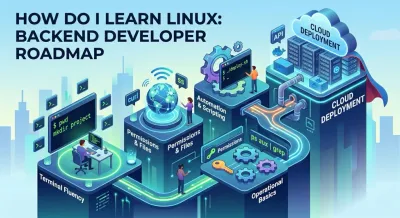
You’re probably asking “how do i learn linux” for a practical reason, not an academic one.
You want to build backend applications, run them locally without fighting your machine, deploy them to servers, inspect logs when something breaks, and automate the repetitive parts so you can spend more time writing software. Linux sits in the middle of all of that.
The mistake most beginners make is treating Linux like a giant syllabus. They try to memorize commands, compare distributions for weeks, or chase “advanced” topics before they can comfortably move around the filesystem. That approach creates knowledge gaps and weak habits.
A better approach is to treat Linux as part of your backend workflow. Learn the command line the same way you learn Git, Python, or API design. Start with the commands that support real work. Build muscle memory. Attach every concept to a task you would do on a project.
Why Linux Is a Backend Developer’s Superpower #
Linux matters because backend software runs in Linux-heavy environments. Linux powers approximately two-thirds of the world’s servers, 91% of public cloud workloads run on Linux, and Linux proficiency can boost a backend developer’s hire rate by up to 40%, according to Hack The Box’s Linux overview.
That changes the question.
You are not learning Linux because operating systems are interesting. You are learning Linux because backend code has to live somewhere, and that “somewhere” is often a Linux server, container, virtual machine, or cloud environment. If you want context for how this fits into the broader backend path, this backend developer roadmap is the right framing.
Linux is not a subject. It is infrastructure literacy #
A junior developer often sees Linux as a bag of commands.
A backend engineer sees something else:
- A deployment surface: where your app process starts, stops, and restarts
- A debugging environment: where logs, ports, permissions, and processes tell you what failed
- An automation layer: where scripts remove manual work
- A consistent runtime: where your app behaves predictably across machines
That mindset matters more than command trivia.
You do not need to become a system administrator before you can ship software. You do need to stop depending on graphical tools for everything. GUI tools are useful, but they hide the model. The terminal exposes it.
Why the command line changes how you work #
The command line gives you speed, repeatability, and precision.
A backend workflow often includes moving between directories, checking files, reading logs, searching text, editing configuration, testing an endpoint, and restarting a process. In Linux, those actions compose well. One command feeds another. Output becomes input. Small tools solve narrow problems, and you chain them.
That is why Linux feels strange at first and powerful later.
Key takeaway: Learn Linux around backend tasks, not around a long list of isolated commands.
The developers who progress fastest do not chase completeness. They learn the subset that supports daily engineering work, then deepen from there. That includes navigation, file management, permissions, package installation, process inspection, networking checks, and basic shell scripting.
If you anchor Linux to deployment, automation, and server management from day one, the learning path gets much clearer.
Building Your Linux Launchpad #
The first decision is not which command to learn. It is where you will practice.
You need a safe environment where breaking things is normal. That usually means either a virtual machine or WSL.

Choose one environment and stay with it #
A common beginner mistake is changing tools too early.
A 4 to 6 week structured plan with 10 to 15 minutes of daily practice on core commands can yield 80 to 90% retention, and sticking to one distribution such as Ubuntu for the first 30 days helps avoid the 50% distraction rate from distro-hopping, according to Yellow Tail Tech’s beginner Linux guide.
Ubuntu is a sensible default for a learner because it has broad documentation and a smooth path into server work.
Use this decision rule:
| Option | Good fit when | Trade-off |
|---|---|---|
| VirtualBox or another VM with Ubuntu | You want a full Linux environment and the freedom to break and restore it | Heavier on memory and disk |
| WSL | You use Windows and want quick terminal access integrated with your daily machine | Feels less like a standalone server |
| Dual boot | You want Linux as a primary environment | Higher setup risk for a beginner |
If your goal is backend development, a VM usually teaches the cleanest mental model. WSL is also a solid option if setup simplicity matters more than realism.
If you want guided practice instead of assembling your own drills, Codeling’s Linux terminals course covers the terminal, file management, shell scripting, and command-line workflows in a hands-on format.
Build the right mental model early #
The filesystem is your map.
Stop thinking in terms of “open a folder” and start thinking in terms of “where am I, what exists here, and where should this project live?” That is the job of a few core commands:
- pwd shows your current location
- ls shows what is in that location
- cd moves you
- mkdir creates structure
- touch creates files
- nano gives you a simple editor
- rm removes what you no longer need
Those commands look basic because they are basic. They are also foundational. You will use them constantly.
Practice structure, not random commands #
Use the terminal to create a small project workspace by hand.
Make directories for a backend app, a logs folder, a scripts folder, and a config folder. Move through them until the structure feels obvious. Create and delete test files. Open files in a terminal editor. Learn the difference between your home directory and a project directory.
That repetition matters more than speed.
Tip: For the first month, avoid collecting commands in a giant cheat sheet. Keep a short command journal with the commands you used and why you used them.
The goal at this stage is muscle memory and orientation. If you can always answer “where am I, what is here, and how do I change it?” you have a strong launchpad.
Mastering Files, Permissions, and Processes #
Most backend issues on Linux fall into one of three buckets. The file is not where you think it is, the process is not doing what you think it is, or the user does not have the permission you think they have.
That is why these topics matter so much.

Permissions are part of application design #
A lot of new developers treat permissions as an annoying Linux quirk. They are not. Permissions are the operating system’s enforcement layer.
Every backend developer should understand three basic capabilities:
- Read
- Write
- Execute
Those permissions apply to different actors. The owner, the group, and others. That model affects whether a script runs, whether a config file stays protected, and whether a deployed app can access the resources it needs.
A practical way to think about this:
| Situation | Linux concept behind it |
|---|---|
| Your script will not run | Execute permission is missing |
| Your app cannot read its config | File ownership or read permission is wrong |
| You accidentally exposed a sensitive file | Permission scope is too broad |
Commands like chmod, chown, whoami, id, and ls -l stop being abstract once you connect them to those scenarios.
Files are operational assets #
In backend work, files are not just code.
They include environment files, logs, service definitions, migration scripts, backups, and deployment scripts. If you cannot inspect, move, edit, and protect files from the terminal, you will struggle as projects become more operational.
Useful habits matter more than memorizing flags:
- Keep project directories predictable
- Separate scripts from source code
- Name log and backup locations clearly
- Inspect before deleting
- Treat config files as sensitive assets
A clean directory layout reduces debugging time because you know where to look.
Processes tell you what the system is doing #
Your application is not “running” in an abstract sense. A process is running, stalled, crashing, listening, consuming resources, or stuck in a restart loop.
That is where tools like ps, top, and kill become part of your daily workflow.
Use them to answer practical questions:
- Did my app start at all?
- Is the right process still running?
- Is it consuming unusual resources?
- Do I need to stop a hung process cleanly?
When you stop thinking of Linux as static and start reading it as a live system, process tools become intuitive.
Here is a good walkthrough to reinforce that operational view:
Text processing is where Linux becomes useful fast #
A backend engineer spends a lot of time searching text.
Logs, config files, stack traces, environment output, command history, and API responses all become easier to work with once you use terminal text tools well. grep is especially important because it lets you narrow a large amount of output to the line or pattern you care about.
That matters in real incidents.
If a service fails to start, you rarely read every log line. You search for likely error terms. If an API call behaves strangely, you inspect the output. If a script generates repeated noise, you filter for the signal.
Commands such as sort, uniq, and sed also become valuable as your projects grow, but grep is the first one that immediately pays off.
Practical rule: Learn commands that help you answer questions. Where is the file? Who owns it? Is the process alive? What do the logs say?
That is the backbone of Linux fluency for backend work.
Connecting Your Code to the World #
A backend application depends on two things outside your source code. It needs software installed on the machine, and it needs to communicate across a network.
That is why package management and networking belong together in your Linux learning plan.
Package managers are dependency infrastructure #
A package manager is not just an installer. It is the system’s controlled way to fetch, install, upgrade, and remove software.
On Ubuntu and Debian systems, you will often use apt. On Fedora-family systems, you will often use dnf.
The important principle is this: backend systems should have a clear, repeatable way to acquire dependencies. That includes language runtimes, database clients, web servers, utilities, and support tools. If you install software manually without understanding the system package layer, you make environments harder to reproduce.
Good Linux habits here are architectural, not mechanical:
- Know which package manager your distro uses
- Prefer standard package workflows over random manual installs
- Track what your application environment depends on
- Separate system dependencies from app dependencies in your thinking
That distinction helps when you move from local development to deployment.
Networking commands make backend systems observable #
Many beginner developers test everything from the browser. That works until it does not.
Terminal networking tools help you isolate where a problem lives.
pinghelps you check reachability at a basic levelcurlhelps you test an API endpoint directlysshelps you inspect what the machine is listening on
Those tools map cleanly to backend questions.
If your service is supposed to answer a request, curl lets you test it without a frontend in the way. If the service should be listening on a port, ss helps verify that assumption. If a machine is not reachable at all, ping can help narrow the issue.
This is also where Linux and version control start to feel connected. After all, many deployment and debugging tasks begin right after code leaves your machine. If you want that side of the workflow to feel less mysterious, this guide on using Git for version control fits well alongside Linux practice.
Learn the network path of your app #
A useful backend habit is to trace the route from code to response.
Ask:
- Where is the app running?
- Is the process alive?
- Is it listening?
- Can I reach it locally?
- Can another system reach it?
- Is the response what I expect?
Linux gives you tools for each question. That is why learning it through deployment and service behavior is much better than learning it as a command encyclopedia.
Automating Your Workflow with Scripts and Servers #
The biggest leap in Linux skill happens when you stop using the terminal one command at a time and start packaging repeatable work into scripts.
That shift changes your role. You are no longer just operating a machine. You are designing reliable workflows.

Scripting is the first serious force multiplier #
A lot of Linux learning stalls because people stay in command mode too long.
They learn how to run a task manually, but not how to make it repeatable. In real backend work, repetition is a warning sign. If you perform the same deployment steps by hand every time, you are increasing risk. If you restart services manually without a standard flow, you invite mistakes.
Achieving proficiency for a certification like CompTIA Linux+ can take as little as two months with structured practice, and developers report 50 to 70% time savings on repetitive deployment and Git-related tasks when they automate them with shell scripting, according to Coursera’s Linux learning overview.
That time savings is not the main benefit. The bigger benefit is consistency.
What scripts should do for a backend developer #
Your first useful scripts should remove friction from routine engineering tasks.
Good early examples include:
- Project setup scripts that create folders, initialize files, or prepare a local environment
- Deployment scripts that pull code, install dependencies, and restart an app process
- Backup scripts that copy important data to a known location
- Log helper scripts that extract or filter operational output
- Health check scripts that confirm a service is up
Notice the pattern. These are not “Linux exercises.” They are backend workflows expressed as automation.
Think in repeatable server states #
Scripting becomes more powerful when you pair it with basic server concepts.
Take a simple web server such as Nginx. Even if you are not trying to become an infrastructure specialist, learning how a web server sits in front of an application teaches several important lessons:
| Concept | Why it matters |
|---|---|
| Service boundaries | Your Python app and your web server are separate concerns |
| Configuration discipline | Small config changes can affect reachability and routing |
| Process management | Services need controlled start, stop, and reload behavior |
| Operational clarity | Logs and config should explain what the system is doing |
This is the foundation under CI/CD thinking. Before a pipeline can automate your deployment, you need a deployment process clear enough to script.
Tip: If you cannot describe your deployment steps as a short checklist, you are not ready to automate them well.
What does not work #
A few habits slow people down:
- Copy-pasting shell scripts without reading them
- Writing one giant script that does everything
- Mixing experimentation and production behavior in the same file
- Avoiding comments in scripts that other people may run
- Skipping manual understanding before automating
Write small scripts first. Make them readable. Give them one job. Then compose them.
That is the Linux habit that scales from side projects to professional backend systems.
Your Project-Based Linux Learning Roadmap #
The fastest way to answer “how do i learn linux” is to stop asking what to study next and start asking what to build next.
Passive study helps at the beginning, but backend fluency grows when Linux becomes part of a working project. Hands-on, project-driven learning can outperform passive methods by 3x in skill retention, and a project-based methodology that includes building and deploying applications on Linux environments correlates with an 85% success rate in DevOps and backend job placements, according to Career Karma’s Linux learning guide.

Build your roadmap around projects, not topics #
Here is a practical sequence that matches how backend skills compound.
Phase 1: Local terminal fluency #
Spend your first stretch of practice getting comfortable with navigation, file creation, editing, and cleanup.
Your deliverable is simple: create and manage a backend project directory entirely from the terminal. If that still feels awkward, do not move on yet.
Phase 2: Operational basics #
Learn permissions, process inspection, and package installation in the context of a real app.
A good project here is a small Python service that writes logs to a file. Run it, stop it, inspect it, break its file permissions, then fix them. That creates the exact kind of feedback loop that makes Linux stick.
Phase 3: Networking and service checks #
Run a local app and test it from the terminal.
Use curl to inspect responses. Use ss to verify listening behavior. Install one dependency through the package manager and note the difference between app-level and system-level setup.
Phase 4: Automation #
Package one repeated workflow into a Bash script.
Do not chase complexity. A script that starts your app, rotates a log, or prepares a deployment folder is enough. The point is to move from “I can do this” to “I can repeat this safely.”
Phase 5: Deployment-minded projects #
Build something that behaves like real backend work.
Good options include:
- A small API deployed on a Linux VM
- A script that filters and summarizes application logs
- A simple Nginx reverse proxy setup for a Python service
- A local environment bootstrap script
- A Dockerized app managed from a Linux terminal
Map Linux skills to visible portfolio work #
A hiring manager does not care that you read about Linux. They care that you can use it.
Here is a simple mapping to keep your learning grounded:
| Learning Stage | Key Skills | Codeling Module / Project |
|---|---|---|
| Foundation | Navigation, file system basics, terminal editing | Linux terminal exercises tied to local project setup |
| System interaction | Permissions, package installation, process inspection | Backend project environment prep and troubleshooting tasks |
| Networking | curl, ss, service verification |
API testing workflows and deployability checks |
| Automation | Bash scripting, repeatable setup, log helpers | Scripted project tasks and deployment-oriented exercises |
| Project application | Linux in day-to-day backend delivery | Portfolio-ready apps that live in GitHub and run in Linux-style workflows |
The learning pattern that holds up #
What works:
- Daily terminal use instead of occasional long sessions
- One distro, one environment, one workflow for a while
- Learning commands through projects
- Keeping a command journal with real examples
- Treating Linux as part of backend architecture
What does not work:
- Memorizing giant command lists
- Switching environments every week
- Learning advanced tools before core navigation is natural
- Using only GUI tools and calling that Linux practice
- Separating Linux from the applications you want to build
If you keep Linux attached to deployment, debugging, automation, and service management, it stops feeling like a separate discipline. It becomes part of how you build software.
Codeling offers a structured path for learners who want to connect Linux practice to backend engineering, not study it in isolation. Its hands-on Python curriculum includes terminal work, Git, APIs, and local projects that mirror real development workflows, so your Linux learning feeds directly into software you can ship.